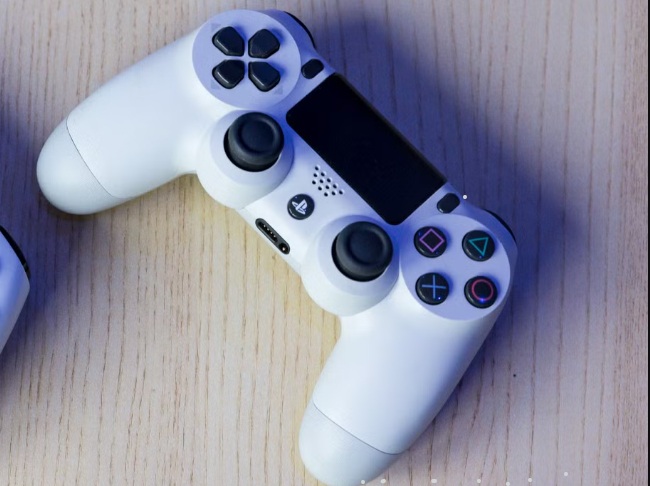
Gaming on a computer offers incredible graphics and performance, but sometimes, a keyboard and mouse just don’t feel right. Whether you are playing a racing game, a platformer, or a third-person adventure, the DualShock 4 offers superior ergonomics. If you have a Sony console gathering dust, or you simply prefer its layout, learning how to connect PS4 controller to PC is a game-changer.
Many gamers assume that because the controller is made by Sony and computers usually run Microsoft Windows, they won’t work well together. That used to be true, but today, it is easier than ever. In this comprehensive guide, we will walk you through every method available. By the end, you will know exactly how to connect PS4 controller to PC using wired and wireless methods so you can get back to gaming.
Why Use a DualShock 4 on Your Computer?
Before we dive into the technical steps of how to connect PS4 controller to PC, let’s discuss why this specific gamepad is such a popular choice. The DualShock 4 is renowned for its comfortable grip, responsive analog sticks, and accurate triggers.
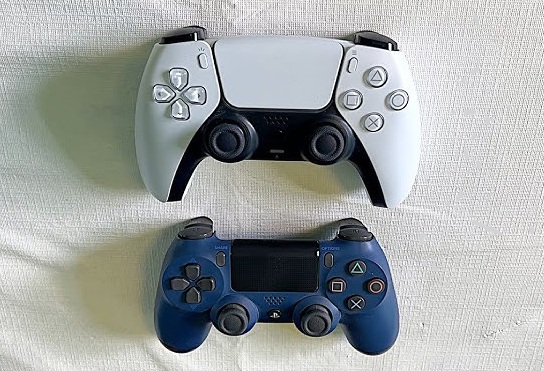
Unlike generic controllers, the DualShock 4 features a touchpad and a gyroscope, which some PC utilities can actually utilize for custom inputs. If you are wondering how to connect PS4 controller to laptop setups for gaming on the go, the lightweight design of this controller is perfect. Furthermore, if you are playing competitive titles, knowing how to connect PS4 controller to PC Fortnite players use can give you the aim assist and movement fluidity you need.
Method 1: The Wired Connection (The Easiest Way)
If you want to know how to connect ps4 controller to pc with usb, you will be happy to hear it is the most straightforward method. This “plug and play” approach requires zero configuration for many modern games.
What You Need:
- Your DualShock 4 controller.
- A micro-USB cable (the standard charging cable that came with the console).
- A simplified USB port on your computer.
Step-by-Step Instructions:
- Plug in the Cable: Connect the smaller end of the micro-USB cable into the port on the top of your controller.
- Connect to PC: Plug the larger USB-A end into an available slot on your computer.
- Driver Installation: Windows should automatically detect the device. You will hear a notification sound, and a small pop-up may appear saying “Setting up device.”
- Verification: Once the light bar on the controller turns on (usually orange to indicate charging), you are connected.
This is the most reliable answer for how to connect PS4 controller to PC if you want to avoid input lag or battery drain. It works seamlessly for how to connect PS4 controller to PC Windows 10 and is equally effective for how to connect PS4 controller to PC Windows 11.
Method 2: Wireless Connection via Bluetooth
Cables can be restrictive. If you want to sit back on your couch, you need to learn how to connect PS4 controller to PC wireless. This utilizes the built-in Bluetooth connectivity of the controller.
Prerequisites:
To figure out how to connect PS4 controller to PC Bluetooth, your computer must have a Bluetooth adapter. Most laptops have this built-in. If you are on a desktop without it, you may need a USB Bluetooth dongle.
Pairing Steps for Windows 10 and 11:
- Open Settings: On your computer, press the Windows Key + I to open settings. Go to Devices (on Windows 10) or Bluetooth & devices (on Windows 11).
- Turn on Bluetooth: Ensure the Bluetooth toggle is switched to “On.”
- Enter Pairing Mode: Pick up your controller. Press and hold the Share button and the round PS button simultaneously. Hold them for about 3-5 seconds.
- Look for the Flash: The light bar on the back of the controller will begin to flash a white light rapidly in a double-blink pattern. This indicates it is in pairing mode.
- Add Device: On your PC screen, click “Add device” or the plus (+) symbol. Select Bluetooth.
- Select Controller: Your PC will scan for devices. Look for “Wireless Controller” in the list. Click it.
- Finish Setup: The light bar should turn a solid color, and Windows will say the device is ready.
You have now successfully solved how to connect PS4 controller to PC wirelessly. This process is identical if you are searching for how to connect PS4 controller to laptop devices wirelessly.
Method 3: Using Steam Integration (Native Support)
If you primarily play games on Steam, you don’t actually need extra drivers. Valve has added native support, making the process of how to connect PS4 controller to PC incredibly smooth.
Configuring Steam:
- Launch Steam: Open the client on your desktop.
- Enter Big Picture Mode: Click the small rectangle icon with two arrows in the top-right corner of the Steam window. This interface is controller-friendly.
- Go to Settings: Click the gear icon.
- Controller Settings: Navigate to the “Controller Settings” menu.
- Check the Box: Check the box that says “PlayStation Configuration Support.”
- Personalize: You can even name your controller and change the color of the light bar here.
Steam acts as a wrapper. It takes the DirectInput signals from the Sony device and translates them into XInput (Xbox signals) that most PC games understand. This is a vital step in learning how to connect PS4 controller to PC for Steam games specifically.
Method 4: Using DS4Windows (For Non-Steam Games)
If you are playing games on Epic Games Store, Ubisoft Connect, or Xbox Game Pass, native support might not exist. This is where you might struggle with how to connect PS4 controller to PC Fortnite or other standalone titles. The solution is a third-party tool called DS4Windows.
What is DS4Windows?
It is a virtual emulator that tricks your computer into thinking your DualShock 4 is actually an Xbox 360 controller, which is natively supported by Windows.
Installation Guide:
- Download: Visit the official GitHub page for DS4Windows (ensure you get the latest version by Ryochan7).
- Extract Files: Download the ZIP file and extract it to a folder on your desktop.
- Run the Installer: Open the file named DS4Windows.exe.
- Install Drivers: A pop-up will ask you to install the ViGEmBus driver. This is essential. Click “Install.”
- Connect Controller: Once the driver is installed, connect your controller via USB or Bluetooth.
- Mapping: The software should detect your controller. You can now use it in any game.
This is the ultimate workaround for how to connect PS4 controller to PC without Bluetooth support in games (meaning games that don’t support the controller natively, even if you are wired).
Wired vs. Wireless: Which Connection is Best?
Now that you know how to connect PS4 controller to PC using different methods, which one should you choose?
| Feature | Wired (USB) | Wireless (Bluetooth) |
| Stability | Extremely High | Moderate (Subject to interference) |
| Input Lag | Lowest possible | Minimal (Good for casual play) |
| Convenience | Low (Tethered to PC) | High (Freedom of movement) |
| Battery Life | Infinite (Charges while playing) | 4-8 Hours (Depends on settings) |
| Audio | Headphone jack works | Headphone jack usually not supported |
If you are a competitive gamer asking how to connect PS4 controller to PC for the best reaction times, stick to the wired connection. The polling rate is generally more consistent. However, for relaxed single-player games, knowing how to connect PS4 controller to PC wireless is much more comfortable.
Troubleshooting Common Connection Issues
Even after following the steps on how to connect PS4 controller to PC, things can go wrong. Here are fixes for common problems.
1. The Computer Won’t Detect the Controller
If you are trying to figure out how to connect ps4 controller to pc with usb but nothing happens:
- Check the Cable: Many micro-USB cables are “charge only.” Ensure you are using a data sync cable.
- Try a Different Port: USB 3.0 ports (usually blue) are faster and provide more power.
2. Bluetooth Pairing Fails
If you are stuck on how to connect PS4 controller to PC Bluetooth:
- Reset the Controller: There is a tiny hole on the back of the controller near the L2 button. Use a paperclip to hold the reset button inside for 10 seconds. Then try pairing again.
- Remove Old Devices: Go to Bluetooth settings, remove “Wireless Controller,” and re-pair it.
3. Double Input (Ghost Inputs)
Sometimes, if you use DS4Windows and Steam at the same time, the game detects two controllers.
- Hide DS4 Controller: In DS4Windows settings, check the “Hide DS4 Controller” option. This prevents the “double controller” issue.
4. Audio Issues
When you connect the controller, Windows might switch your default audio output to the controller’s speaker.
- Fix: Click the speaker icon in your taskbar and switch the output back to your headphones or speakers.
Specific Scenarios
How to Connect PS4 Controller to PC Windows 10 vs Windows 11
The process for how to connect PS4 controller to PC Windows 10 involves the classic “Devices” menu. For how to connect PS4 controller to PC Windows 11, the interface is sleeker, found under “Bluetooth & devices,” but the underlying technology is identical. Both operating systems handle the DirectInput drivers similarly.
How to Connect PS4 Controller to PC without Bluetooth
If your PC lacks a Bluetooth radio, and you hate cables, you can buy the Sony DualShock 4 USB Wireless Adapter. However, these are rare and expensive. A cheaper alternative is a generic Bluetooth 4.0 dongle. Plug it in, and suddenly you can use the wireless method described above. This is a great tip for those searching how to connect PS4 controller to PC without Bluetooth built-in.
How to Connect PS4 Controller to PC Fortnite
Fortnite is popular, but it runs through the Epic Games Launcher. While Epic has improved support, using DS4Windows is the safest bet to ensure your aim assist and triggers work correctly. Simply launch DS4Windows, connect your controller, and then launch Fortnite.
Conclusion
Mastering how to connect PS4 controller to PC opens up a new world of gaming possibilities. You are no longer restricted to a mouse and keyboard or forced to buy an expensive Xbox controller. Whether you choose the reliability of a USB cable or the freedom of Bluetooth, the DualShock 4 remains a top-tier peripheral for PC gaming.
We have covered how to connect ps4 controller to pc with usb, detailed how to connect PS4 controller to PC wireless, and looked at software solutions like Steam and DS4Windows. No matter your setup—laptop or desktop, Windows 10 or 11—you now have the knowledge to get connected and start playing.
Remember, technology evolves, but the need for good control remains constant. So grab your controller, follow these steps on how to connect PS4 controller to PC, and jump into your favorite game today!
Frequently Asked Questions
1. Can I use the headphone jack on the PS4 controller when connected to PC?
Generally, the headphone jack (audio jack) on the DualShock 4 only works reliably when you use the official Sony USB Wireless Adapter or connect via USB cable. If you are connecting via standard Bluetooth, the audio feature usually does not function because the standard Bluetooth driver does not support the audio bandwidth required for voice chat and game sound simultaneously.
2. Why is my PS4 controller light blinking white but not connecting?
If the light bar is blinking white continuously, it means the controller is in pairing mode or trying to find the last device it paired with (usually your PlayStation console). If you are trying to learn how to connect PS4 controller to PC, you must ensure your PC is searching for new Bluetooth devices. If it keeps blinking without connecting, try resetting the controller using the pinhole button on the back.
3. Do I need to install drivers to use a PS4 controller on Windows?
For basic functionality via USB, Windows 10 and 11 will automatically install a generic “Wireless Controller” driver. However, many games (especially older ones or those outside of Steam) require XInput signals. In these cases, you do not need a driver for the hardware itself, but you need software like DS4Windows which installs the ViGEmBus driver to translate your inputs so the game understands them.
4. How do I turn off the PS4 controller when connected to PC?
When connected to a PS4 console, the controller turns off with the system. On PC, if you are connected via Bluetooth, you can turn off the controller by pressing and holding the PS button for about 10 seconds until the light bar turns off. Alternatively, if you just disconnect Bluetooth from your PC side, the controller will power down after a short period of inactivity.
5. Will my PS4 controller vibrate on PC games?
Yes, vibration feedback (rumble) works on PC, but it depends on the method you use. If you use Steam Input or DS4Windows, vibration is supported and can even be customized. If you connect via raw DirectInput (without Steam or emulators), vibration may not work in many games because the game developers have to specifically program support for the DualShock 4 rumble motors.

