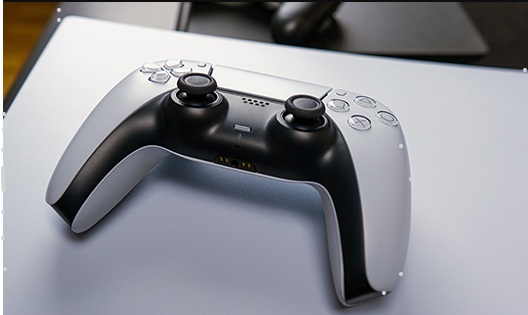
Do you want to experience next-gen haptic feedback on your computer? Knowing how to connect PS5 controller to PC opens up a world of immersive gaming. Whether you prefer a wired connection for zero latency or the freedom of wireless play, getting your DualSense controller running on Windows is easier than you might think.
In this comprehensive guide, we will walk you through every method available. We will cover how to connect PS5 controller to PC with Bluetooth, using a USB cable, and configuring settings on Steam and Epic Games. By the end of this article, you will be gaming like a pro.
Why Use a PS5 DualSense Controller on PC?
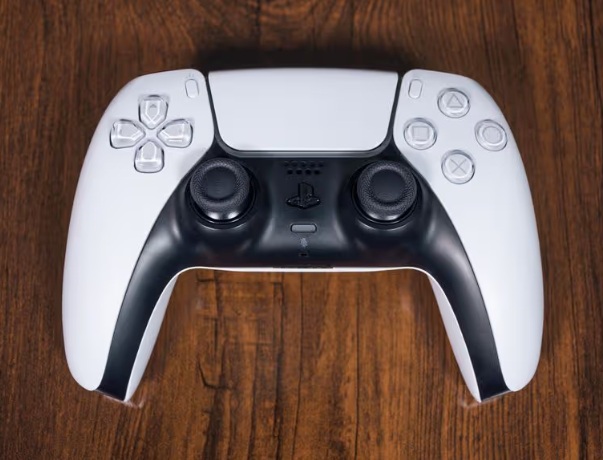
Before we dive into the steps on how to connect PS5 controller to PC, let’s talk about why you should. The Sony DualSense controller is arguably one of the best gamepads on the market. It features:
- Adaptive triggers that create resistance.
- Precise haptic feedback (vibration).
- A comfortable, ergonomic design.
- A built-in microphone and trackpad.
While Windows 11 and Windows 10 have native support for Xbox controllers, Sony has made great strides in PC compatibility. Many modern PC games now fully support the DualSense features, making the knowledge of how to connect PS5 controller to PC incredibly valuable.
Method 1: How to Connect PS5 Controller to PC with USB (Wired)
The easiest and most reliable way to play is by using a wired connection. This method ensures you never run out of battery mid-game and eliminates input lag. If you are wondering how to connect PS5 controller to PC with cable, simply follow these steps.
Step-by-Step Wired Connection
- Gather your equipment: You will need your DualSense controller and a USB-C to USB-A cable (or USB-C to USB-C if your PC has a Type-C port).
- Plug it in: Connect the USB-C end into the top of your controller.
- Connect to PC: Plug the other end into an available USB port on your computer.
- Wait for detection: Windows should automatically detect the device. You will hear a notification sound, and the controller usually lights up.
That is it! You have successfully learned how to connect PS5 controller to PC with USB. Most games on Steam or Epic Games will recognize it immediately.
Method 2: How to Connect PS5 Controller to PC with Bluetooth (Wireless)
If you hate messy cables, you need to know how to connect PS5 controller to PC with Bluetooth. This allows you to sit back and play comfortably from a distance.
Preparing Your PC
First, ensure your computer has Bluetooth. Most laptops and modern motherboards have it built-in. If not, you may need a Bluetooth dongle.
Putting the Controller in Pairing Mode
This is the most critical step when learning how to connect PS5 controller to PC without Bluetooth cables (wirelessly).
- Turn off the controller if it is on.
- Press and hold the Create button (the small button to the left of the touchpad) and the PS button (the logo in the center) at the same time.
- Hold them down for about 3 seconds until the light bar around the touchpad begins to flash rapidly in blue. This indicates the controller is in pairing mode.
Syncing with Windows 11 or 10
Now that your controller is searching for a connection, let’s finish the process on your PC.
- Press the Windows key and type “Bluetooth”.
- Select “Bluetooth and other devices settings”.
- Make sure Bluetooth is toggled On.
- Click “Add device” and select “Bluetooth”.
- Look for a device named “Wireless Controller” or “DualSense Wireless Controller”.
- Click on it to pair. The lights on your controller will stop flashing and turn a solid color.
Congratulations! You have mastered how to connect PS5 controller to PC with Bluetooth.
Bluetooth vs. Wired Comparison
| Feature | Wired Connection (USB) | Wireless Connection (Bluetooth) |
| Setup Speed | Instant | Takes 1-2 minutes |
| Latency | Low (Best for competitive) | Varies (Good for casual) |
| Battery Life | Unlimited (Charges while playing) | 6-12 hours depending on haptics |
| Features | Full DualSense support | Some haptics may not work natively |
| Range | Limited by cable length | Up to 10-30 feet |
Method 3: How to Connect PS5 Controller to PC Steam
Steam is the most popular launcher for PC gaming, and it has fantastic built-in support for PlayStation controllers. Even if a game doesn’t natively support the controller, Steam Input can translate your inputs. Here is how to connect PS5 controller to PC Steam:
Enabling Steam Input
- Open Steam and log in.
- Click on Steam in the top-left corner and go to Settings.
- Navigate to the Controller tab.
- You should see your controller listed here.
- Look for an option that says “Enable Steam Input for PlayStation controllers” or “PlayStation Configuration Support” (depending on your Steam version). Toggle this ON.
Once this is active, Steam will treat your DualSense like a native device. You can even customize the light bar color and button mapping. Learning how to connect PS5 controller to PC Steam ensures compatibility with almost every game in your library.
Method 4: How to Connect PS5 Controller to PC Epic Games
The Epic Games Store is another huge platform, home to titles like Fortnite. However, it doesn’t have the same driver support as Steam. If you want to know how to connect PS5 controller to PC Epic Games, you might need a small workaround.
Adding Non-Steam Games to Steam
The easiest trick is to run Epic Games through Steam.
- Open Steam.
- Click “Games” in the top menu bar.
- Select “Add a Non-Steam Game to My Library”.
- Find the Epic Games Launcher or the specific game executable in the list.
- Click “Add Selected Programs”.
- Launch the game through Steam.
This allows Steam’s controller drivers to work on Epic Games titles, solving the issue of how to connect PS5 controller to PC Epic Games.
Troubleshooting: How to Connect PS5 Controller to PC Without Bluetooth or Cable Issues
Sometimes technology fails us. If you are struggling with how to connect PS5 controller to PC, check these common fixes.
Controller Not Detected via USB
If you followed the steps on how to connect PS5 controller to PC with USB but nothing happened:
- Try a different USB-C cable. Some cables are for charging only and do not transfer data.
- Try a different USB port on your motherboard.
Bluetooth Connection Drops
If you learned how to connect PS5 controller to PC with Bluetooth but it keeps disconnecting:
- Update your Bluetooth drivers via Device Manager.
- Ensure there are no physical obstructions between the antenna and the controller.
- Your battery might be low. Charge the DualSense via USB.
Double Input Issues
If you press a button and the game registers it twice, it usually means you have two programs trying to map the controller at once (e.g., Steam and DS4Windows running simultaneously). Close one of them.
Advanced: Using DS4Windows
For games outside of Steam (like Game Pass titles) that refuse to recognize the device, you may need third-party software.
DS4Windows is a free utility that tricks Windows 11 into thinking your DualSense is an Xbox 360 controller. This is the ultimate backup plan for how to connect PS5 controller to PC when native support fails.
- Download and install DS4Windows.
- Install the required drivers (ViGEmBus) prompted by the app.
- Connect your controller via USB or Bluetooth.
- Start DS4Windows. It should detect your controller instantly.
Now, your PC thinks you are using an Xbox controller, making it compatible with virtually every game on Windows. This is a vital tool for anyone mastering how to connect PS5 controller to PC.
How to Connect PS5 Controller to PS5 After PC Use
A common frustration is that once you pair the controller to a PC, it won’t turn on your console. You need to know how to connect PS5 controller to PS5 again.
- Turn on your PlayStation 5 console manually using the power button on the console.
- Connect the controller to the console using the USB-C cable.
- Press the PS button.
- The controller will re-sync with the console.
You can now unplug the cable and play wirelessly. You will have to repeat the pairing process on PC the next time you swap back.
Enhancing Your Experience on Windows 11
Windows 11 has excellent gaming features that pair well with the DualSense. To get the most out of learning how to connect PS5 controller to PC Windows 11:
- Update Firmware: Sony releases firmware updates for the DualSense on PC. Download the “Firmware updater for DualSense wireless controller” from the official PlayStation website to keep haptics working smoothly.
- Audio Settings: Sometimes, Windows recognizes the DualSense as an audio device (speaker). If your sound disappears after connecting, click the Speaker icon in your taskbar and switch the output back to your headphones or speakers.
Summary: Which Method is Best for You?
We have covered a lot of ground on how to connect PS5 controller to PC.
- Use USB if you play competitive shooters like Call of Duty or Overwatch where every millisecond counts.
- Use Bluetooth for relaxed gaming sessions in single-player adventures like Cyberpunk 2077 or Elden Ring.
- Use Steam Input for the easiest configuration and button mapping.
- Use DS4Windows for Game Pass or older titles that don’t support PlayStation devices natively.
Regardless of your choice, the DualSense is a fantastic addition to any PC gaming setup.
Final Thoughts
Learning how to connect PS5 controller to PC is a simple process that upgrades your gaming rig significantly. The days of struggling with drivers are mostly behind us. Whether you are using Windows 11, Steam, or Epic Games, the steps are straightforward.
Remember to keep your controller charged, update your firmware, and enjoy the premium feel of Sony’s hardware on your computer. Now that you know how to connect PS5 controller to PC, go boot up your favorite game and enjoy the experience!
Frequently Asked Questions (FAQs)
1. Can I use the PS5 controller features like haptic feedback on PC?
Yes, but it depends on the game and connection method. To experience the full adaptive triggers and haptic feedback, you usually need to use a wired USB connection. Only specific games natively support these features on PC (like Spider-Man: Miles Morales or Returnal). If you use Bluetooth, most games will default to standard vibration.
2. How do I fix my PC recognizing the controller as an audio device?
This is a common issue when learning how to connect PS5 controller to PC. The DualSense has a built-in speaker, and Windows often switches to it automatically. To fix this, click the volume/speaker icon in the bottom-right corner of your taskbar on Windows 11 or 10. Click the arrow to expand the list and select your regular speakers or headset instead of “Wireless Controller.”
3. Do I need a specific Bluetooth version to connect wirelessly?
To successfully execute how to connect PS5 controller to PC with Bluetooth, your PC requires Bluetooth 4.0 or higher. Most modern adapters and laptops use Bluetooth 5.0 or 5.1, which provides a more stable connection and better range. If your connection is laggy, consider upgrading your Bluetooth dongle.
4. Can I connect multiple PS5 controllers to one PC?
Yes, you can connect multiple controllers. If you are using Bluetooth, you can pair up to four controllers, though having too many might cause signal interference depending on your adapter quality. For USB, you can connect as many as you have USB ports for. This is great for local multiplayer games on Steam.
5. Why won’t my PS5 controller connect to PC Bluetooth?
If you are struggling with how to connect PS5 controller to PC with Bluetooth, ensure the controller isn’t already connected to your PS5 console. If the console turns on when you press the PS button, it is still paired there. Hold the Create and PS buttons longer to force pairing mode. Also, try removing the “Wireless Controller” from your PC’s Bluetooth list and re-pairing it from scratch.

