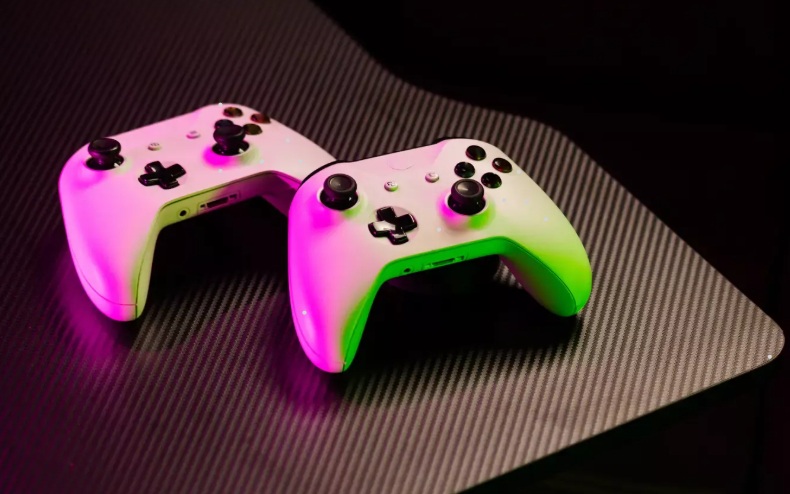
Many PC gamers prefer the comfort and familiarity of a controller over a traditional keyboard and mouse setup. The Xbox controller, known for its ergonomic design and robust build, is a popular choice. If you’ve been wondering how to connect Xbox controller to PC, you’ve come to the right place. This guide will walk you through every method available, ensuring you can get back to your games with your preferred input device. We will cover various connection types, troubleshoot common problems, and answer your most pressing questions.
Getting Started: Know Your Xbox Controller Version
Before diving into the connection methods, it’s helpful to identify which Xbox controller model you have. Microsoft has released several versions over the years, and their connection capabilities can differ, especially regarding Bluetooth support.

The Original Xbox One Controller (V1 & V2)
- V1 (2013): Released with the original Xbox One console. This model lacks a 3.5mm headphone jack and does not have built-in Bluetooth. The plastic around the Xbox button is a separate, glossy piece from the main faceplate.
- V2 (2015): A minor revision that added a 3.5mm headphone jack at the bottom. It still lacks Bluetooth and has the same glossy plastic around the Xbox button as the V1.
The Bluetooth-Enabled Xbox One Controller (V3)
- V3 (2016): Launched alongside the Xbox One S. This was the first model to include Bluetooth support, making wireless connections to PCs much easier. You can identify this version because the plastic around the Xbox button is part of the main controller faceplate, not a separate glossy piece.
The Modern Xbox Series X|S Controller (V4)
- V4 (2020): This is the latest controller, released with the Xbox Series X and Series S consoles. It retains all the features of the V3, including Bluetooth, but adds a dedicated “Share” button in the center. It also features a refined D-pad and textured grips.
Knowing your controller version is key, as V1 and V2 models will require a wired connection or a specific wireless adapter. V3 and V4 models offer the added flexibility of Bluetooth.
Method 1: The Wired Connection (USB Cable)
The simplest and most reliable way to get gaming is by using a physical cable. This method works for all versions of the Xbox One and Xbox Series controllers. It’s the perfect solution if you’re looking for a plug-and-play experience without worrying about batteries or signal drops. This is the primary method for anyone wondering how to connect Xbox controller to PC without Bluetooth.
How to Connect Xbox Controller to PC USB
Connecting your controller with a USB cable is incredibly straightforward.
- Find the Right Cable: You will need a USB cable that fits your controller.
- Xbox One Controllers (V1-V3): Require a micro-USB to USB-A cable.
- Xbox Series X|S Controller (V4): Requires a USB-C to USB-A cable.
- Plug It In: Connect the smaller end of the cable (micro-USB or USB-C) into the port at the top of your Xbox controller.
- Connect to PC: Plug the other end (USB-A) into an available USB port on your computer.
- Automatic Installation: Your Windows PC should automatically detect the controller. You’ll hear a sound, and Windows will install the necessary drivers. The Xbox button on the controller will light up and remain solid once the connection is established.
- Start Playing: Your controller is now ready to use for any PC game that supports gamepads.
This process for how to connect Xbox One controller to PC wired is favored for its stability and for eliminating battery concerns, making it ideal for long gaming sessions.
Method 2: The Wireless Connection
For those who prefer gaming without the restriction of a cable, there are two primary wireless options. The method you choose will depend on your controller model and your PC’s hardware. Learning how to connect Xbox controller to PC wireless gives you freedom of movement.
How to Connect Xbox Controller to PC with Wireless Adapter
If you have an older controller (V1 or V2) or if your PC does not have reliable Bluetooth, the Xbox Wireless Adapter for Windows is the best solution. This small USB dongle provides a dedicated, low-latency connection that is often more stable than standard Bluetooth. It supports up to eight controllers at once.
Steps for Connecting with the Adapter
- Plug in the Adapter: Insert the Xbox Wireless Adapter into a USB port on your PC. Windows will automatically install the necessary drivers. A small light on the adapter will begin to blink.
- Turn On Your Controller: Press and hold the Xbox button in the center of your controller to power it on. The button will start to blink slowly.
- Press the Pairing Button on the Adapter: Press the small sync button located on the side of the Xbox Wireless Adapter. The light will begin to flash more rapidly.
- Press the Pairing Button on the Controller: Within 20 seconds, press and hold the small, round pairing button on the top of your controller (near the USB port). The Xbox button’s light will start to flash quickly.
- Connection Established: Once the lights on both the adapter and the controller turn solid, they are successfully paired. Your controller is now connected wirelessly to your PC.
This method provides a flawless way for how to connect Xbox controller to PC. The adapter creates a direct link, just like the one between a controller and an Xbox console.
How to Connect Xbox One Controller to PC Bluetooth
If you have a newer controller (V3 or V4) and your PC has built-in Bluetooth, this is the most convenient wireless option. It’s the perfect answer for how to connect Xbox controller to PC without adapter.
Steps for Connecting with Bluetooth
- Enable Bluetooth on Your PC:
- Go to Settings on your Windows PC.
- Click on “Devices” (or “Bluetooth & devices” on Windows 11).
- Ensure the Bluetooth toggle is turned On.
- Click on “Add Bluetooth or other device” and then select “Bluetooth“. Your PC will begin searching for available devices.
- Prepare Your Controller for Pairing:
- Turn on your Xbox controller by pressing the Xbox button.
- Press and hold the pairing button on the top of the controller for about three seconds. The Xbox button will start to blink rapidly, indicating it’s in pairing mode.
- Connect the Controller:
- On your PC’s Bluetooth devices list, you should see an entry for “Xbox Wireless Controller“.
- Click on it to pair.
- Confirm Connection: The Xbox button on your controller will turn solid once it is successfully connected to your PC.
You have now successfully learned how to connect Xbox controller to PC using Bluetooth. You can start playing your favorite games wirelessly.
How to Connect Xbox Controller to PC Steam
Steam, the largest digital distribution platform for PC gaming, offers excellent native support for Xbox controllers. Once your controller is connected to your PC using any of the methods above (USB, Wireless Adapter, or Bluetooth), Steam makes it easy to configure and use.
Configuring Your Controller in Steam
- Connect Your Controller: First, ensure your controller is connected to your PC via your chosen method.
- Open Steam: Launch the Steam application.
- Enter Big Picture Mode (Optional but Recommended): For a console-like experience, click the Big Picture Mode icon in the top-right corner of the Steam client.
- Access Controller Settings:
- In the top-left corner, click “Steam” and then select “Settings“.
- Navigate to the “Controller” tab on the left-hand menu.
- Enable Xbox Configuration Support: Make sure the box for “Xbox Configuration Support” is checked. This allows Steam to manage your controller’s button mapping and ensures compatibility across a wide range of games, even those without native controller support.
- Customize (Optional): From this menu, you can also calibrate your controller, adjust dead zones, and customize button layouts for different games.
By following these steps, you can be confident that your Xbox controller will work seamlessly with your entire Steam library.
Troubleshooting Common Connection Issues
Sometimes, technology doesn’t cooperate. If you’re having trouble figuring out how to connect Xbox controller to PC, here are some common issues and their solutions.
| Problem | Potential Solution |
| Controller Won’t Turn On | Check the batteries. If you are using AA batteries, try a fresh pair. If you have a Play & Charge Kit, connect the controller via USB to see if it powers on; the battery may be dead or faulty. |
| Controller Not Detected by PC | Try a different USB port. For wired connections, try a different USB cable. Restart your PC. A simple reboot can often resolve driver conflicts. |
| Bluetooth Connection Fails or Drops | Ensure your controller is a Bluetooth-compatible model (V3 or V4). Update your PC’s Bluetooth drivers from your motherboard or laptop manufacturer’s website. Move closer to your PC to improve signal strength and remove any potential sources of wireless interference. |
| Controller Blinks But Won’t Connect | This usually means it’s in pairing mode but can’t find the device. Re-initiate the pairing process for both the controller and the PC (or Wireless Adapter). |
| Controller Needs a Firmware Update | Download the “Xbox Accessories” app from the Microsoft Store on your PC. Connect your controller via USB. The app will notify you if a firmware update is available. Keeping your controller’s firmware updated is crucial for compatibility and performance. |
Frequently Asked Questions (FAQs)
- How do I switch my controller between my Xbox and my PC?
If you connect via USB or the Wireless Adapter, you will need to re-pair the controller each time you switch devices. However, modern controllers (V3 and V4) can remember one Bluetooth device (your PC) and one Xbox Wireless device (your console or adapter). You can quickly switch between the two by double-tapping the pairing button. - Can I use the headphone jack on the controller when connected to a PC?
Yes. When connected via USB cable or the Xbox Wireless Adapter, the 3.5mm headphone jack on your controller will work for game audio and chat. Audio support via Bluetooth can be less reliable and may depend on your PC’s hardware and drivers. - Why is there input lag when I use Bluetooth?
While convenient, a standard Bluetooth connection can sometimes introduce more latency than a wired or Xbox Wireless Adapter connection. For competitive or fast-paced games, using the USB cable or the dedicated adapter is recommended for the fastest response times. - How many Xbox controllers can I connect to my PC at once?
With the Xbox Wireless Adapter for Windows, you can connect up to eight controllers simultaneously. The number of controllers you can connect via Bluetooth will depend on your PC’s Bluetooth adapter, but it is typically between four and seven. - Do I need to install any special software to use my Xbox controller on PC?
No. For basic functionality, Windows has all the necessary drivers built-in. Your controller will be recognized as a standard gamepad. However, for firmware updates and advanced customization, downloading the free “Xbox Accessories” app from the Microsoft Store is highly recommended. This completes the process of learning how to connect Xbox controller to PC.

